How do I find, organize, and manage my saved worksheets?
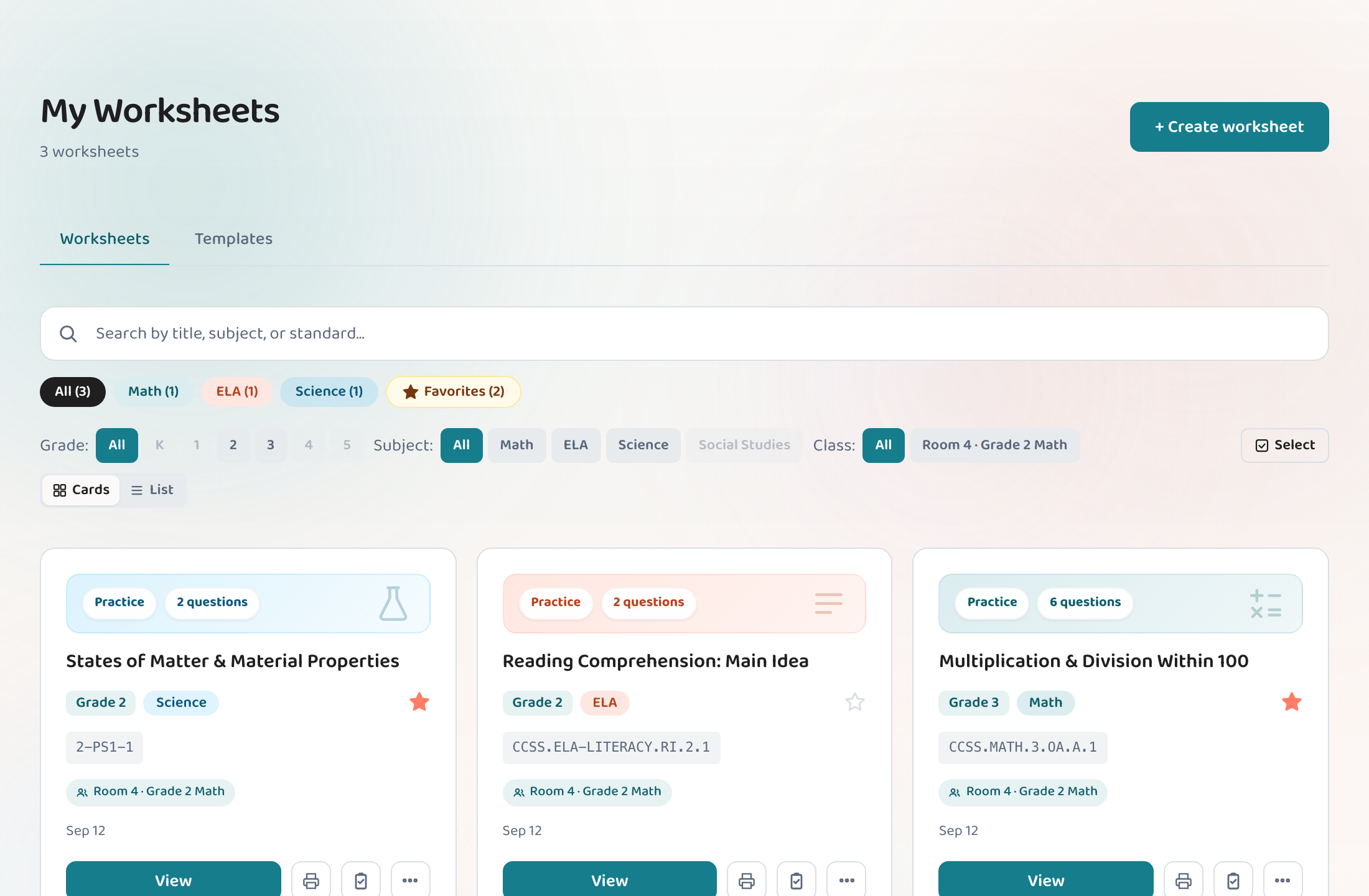
Your saved worksheets live at "My Worksheets" in the menu. You can switch between cards and list view, filter with 1-click subject pills (or view starred favorites), and search your whole library by title or standard. Each card features subject-themed headers and a direct 1-click Quick Print button, with secondary actions (Clone, Change standard, Delete) organized into a clean menu. You can also use bulk select to delete, download, print, or favorite several worksheets at once. The library is available on all plans — free users can see their five most recent worksheets, and Teacher and Pro keep the full history.
Step by step
Open My Worksheets
Choose "My Worksheets" from the menu. Your worksheets appear in a grid of cards — the most recently made one first — with color-coded banners for Math, ELA, Science, and Social Studies.
Switch between cards and list view
Use the view toggle at the top of the library to flip between card view (a grid of thumbnails) and list view (a compact, dense list). Your choice is remembered between sessions.
Filter by subject or search
Click the quick-filter pills under the search bar (All, Math, ELA, Science, Social Studies, or ★ Favorites) to narrow your view instantly, or type in the search box to find worksheets across your entire library by title or standard code.
Quick print or favorite with one click
Click "Quick Print" on any worksheet card to open the print dialog immediately without loading the full editor. Click the star (☆) to favorite a worksheet, then use the "★ Favorites" pill to view all starred sheets together.
Clone or adapt from the action menu
Click the three dots (···) on any worksheet card or row to open its action menu: Clone to make an instant duplicate, Change standard to retarget the worksheet to a new grade/standard, or Delete to remove it.
Use bulk actions
Click "Select" to enter bulk mode. Check the worksheets you want (or "Select all" to check everything visible), then choose an action from the bar that appears: Delete, Download PDF, Print, Favorite, or Clone. The bar shows how many are selected and disables itself while the action runs.
Good to know
- Free accounts see the 5 most recent worksheets — Teacher and Pro keep the full library.
- In list view, a worksheet family (original plus all its versions) can be expanded inline with the arrow beside the parent.
- In cards view, click the variant count badge on a card to open a family modal showing the parent and all linked versions side by side.
- Bulk download and print work on up to 20 worksheets at once to keep render times manageable.
Common questions
Can I search my whole library, not just what's loaded?
Yes. Type in the search box and Lessonpress searches your entire library (title and standard code) — not just the worksheets visible on screen. Results load automatically as you type.
What does Quick Print do?
Quick Print triggers your browser's print dialog directly from the library card or list row, letting you print or save as a PDF in one click without waiting for the full worksheet page to load.
What's the difference between cloning and generating a new worksheet?
A clone is an exact, identical copy of the original — same questions, same layout. A new worksheet from the same settings generates fresh questions from scratch. Use clone when you want the same page (for a different class, or to archive a version before editing); use generate when you want a new take on the same topic.
How do favorites work?
Starring a worksheet marks it as a favorite. You can click the "★ Favorites" pill under the search bar at any time to filter your library down to only your starred worksheets.
Why can I only see 5 worksheets on the free plan?
Free accounts show the 5 most recent worksheets. The older ones are there — they don't get deleted — and become visible again if you upgrade to Teacher or Pro.
Try it yourself, free.
Make a standards-aligned worksheet in under a minute. No credit card to start.
Start free