How do I track a class by grading period (semester or quarter)?
Open a class, click “Manage periods,” and add each grading period you use — a name (Fall Semester, Q1, Trimester 2) plus a start and end date. Then use the “Period” dropdown at the top of the class to pick one: the scoring grid, the mastery numbers, and the class report all narrow to just that period's work. Scores sort into periods automatically by the date you recorded them, so nothing needs re-entering — switch periods to compare, or choose “All time” for the whole year.
Step by step
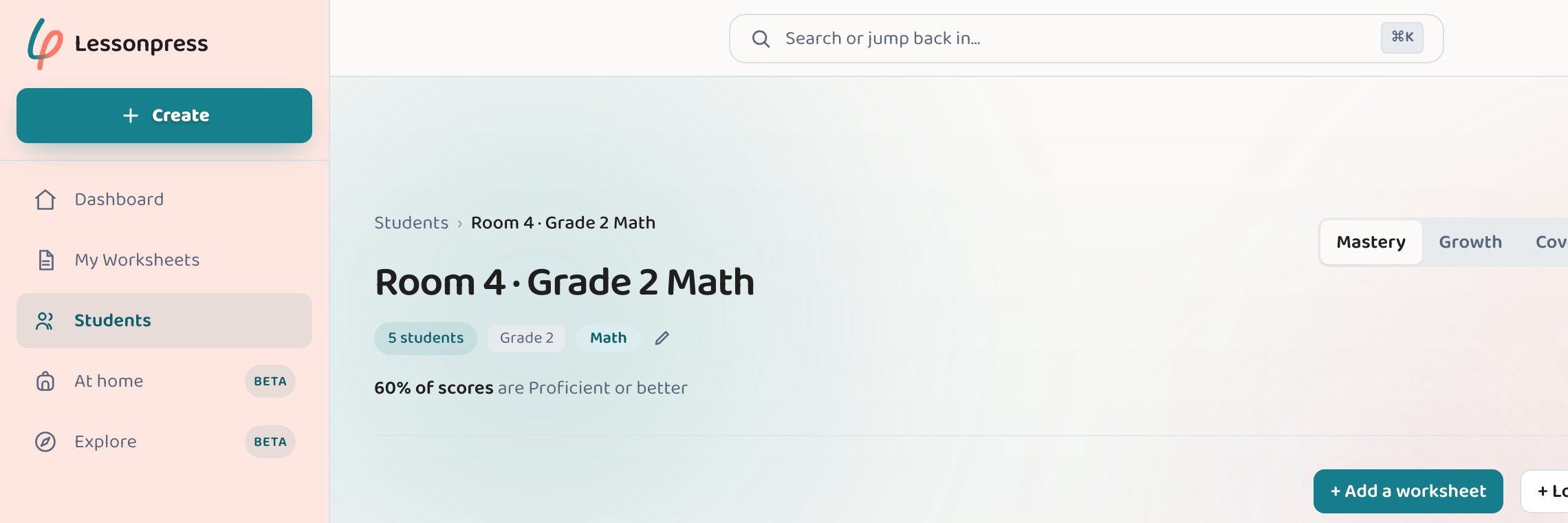
Open the class you want to track
Open Students and choose the class. Grading periods are set per class, so each class can follow its own calendar.
Add your periods or pick a preset
Click “Manage periods.” You can choose a quick preset (Semesters, Trimesters, or Quarters) and enter your school year start and end dates to generate contiguous, balanced dates in one click — or type custom names and dates by hand.
Pick a period
Use the “Period” dropdown at the top of the class. The scoring grid, the mastery percentages, and the class report all filter to just that period's scores.
Read it — and switch to compare
You see who's secure and who's behind for that window only. Flip between periods to compare term over term, or choose “All time” for the full-year view.
Good to know
- Presets (Semesters, Trimesters, Quarters) split your school year evenly into clean, non-overlapping periods in seconds.
- Scores land in a period by the date you recorded them — you never re-file anything.
- Deleting a period never deletes scores; they just stop being grouped under it.
- Period filtering lives on each class's page and report. The cross-class Insights view stays all-time for now.
Common questions
Do I have to tag each score with a period?
No. Scores sort into periods automatically by the date they were recorded — you only set each period's start and end dates once.
How do presets work?
Presets take your school year's start and end dates and automatically calculate balanced, gapless dates for 2 Semesters, 3 Trimesters, or 4 Quarters. You can always tweak individual dates afterwards.
What if I score while the wrong period is selected?
A score is filed by today's date, so if a past period is selected while you score, the new mark lands in the current period, not the past one. Score in “All time” or the current period to avoid surprises.
Set up your class, free.
Add a class, score a worksheet, and watch mastery fill in by standard. Free 7-day Pro trial — no card to start.
Set up your class