How do I tell Lessonpress a worksheet was too hard or too easy?
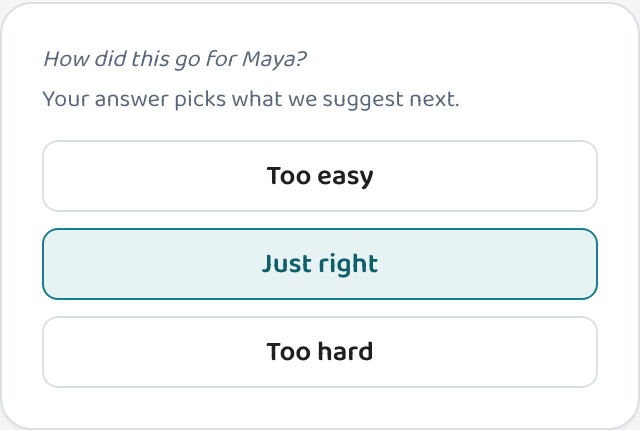
Under any worksheet you made for your child there are three buttons: Too easy, Just right, and Too hard. Tapping one takes a second and changes what gets suggested next — Too hard brings the same skill back at an easier level rather than moving on, and Too easy keeps the same skill but goes deeper. You never have to use them: with no feedback at all, Lessonpress simply moves to the next untouched topic for their grade. They're there to make the next worksheet fit better, not to grade anybody.
Step by step
Open the worksheet after your child has had a go
Either from their page under "What we've done", or from your worksheet library.
Tap the one that matches
You're describing the worksheet, not your child. "Too hard" means that page asked too much of them that day — it isn't a judgement about them.
- Too easy: Same skill next time, but deeper — harder questions and more real-world framing.
- Just right: Move on to the next topic they haven't covered yet.
- Too hard: Same skill again at an easier level. Struggling with something isn't a reason to leave it behind.
Look at what changes
The "Next up" card on your child's page updates straight away, and tells you why it changed — for example "Because the last one felt too hard".
Good to know
- If your child answered on screen, you don't need to do this at all — the score works it out on its own.
- There's no wrong answer and nothing is permanent. It only shapes the next suggestion.
- For math, saying "Too hard" can also offer the earlier skill that one builds on, if there is one.
Common questions
Do I have to rate every worksheet?
Not at all. With no feedback Lessonpress just moves to the next topic for their grade. Rating is how you steer it when something doesn't fit.
Does my child see this?
No. It's on your side of the screen, and the words describe the worksheet rather than them.
What if I tap the wrong one?
Tap a different one. It only affects the next suggestion, and you can change it as many times as you like.
Try it yourself, free.
Make a standards-aligned worksheet in under a minute. No credit card to start.
Start free