How do I stop retyping my name and grade on every worksheet?
Open your Account page, scroll to "Classroom defaults," and fill in your teacher name, school name, default grade, default subject, and default header fields — then click "Save defaults." From that point on, the worksheet wizard opens pre-filled with those settings, so you skip the repetitive setup steps on every visit. You can still change anything in the wizard for a specific worksheet; the defaults are just a starting point. Classroom defaults are available on every plan, including Free.
Step by step
Open your Account page
Sign in and open "Account" from the menu. Scroll down to the "Classroom defaults" section.
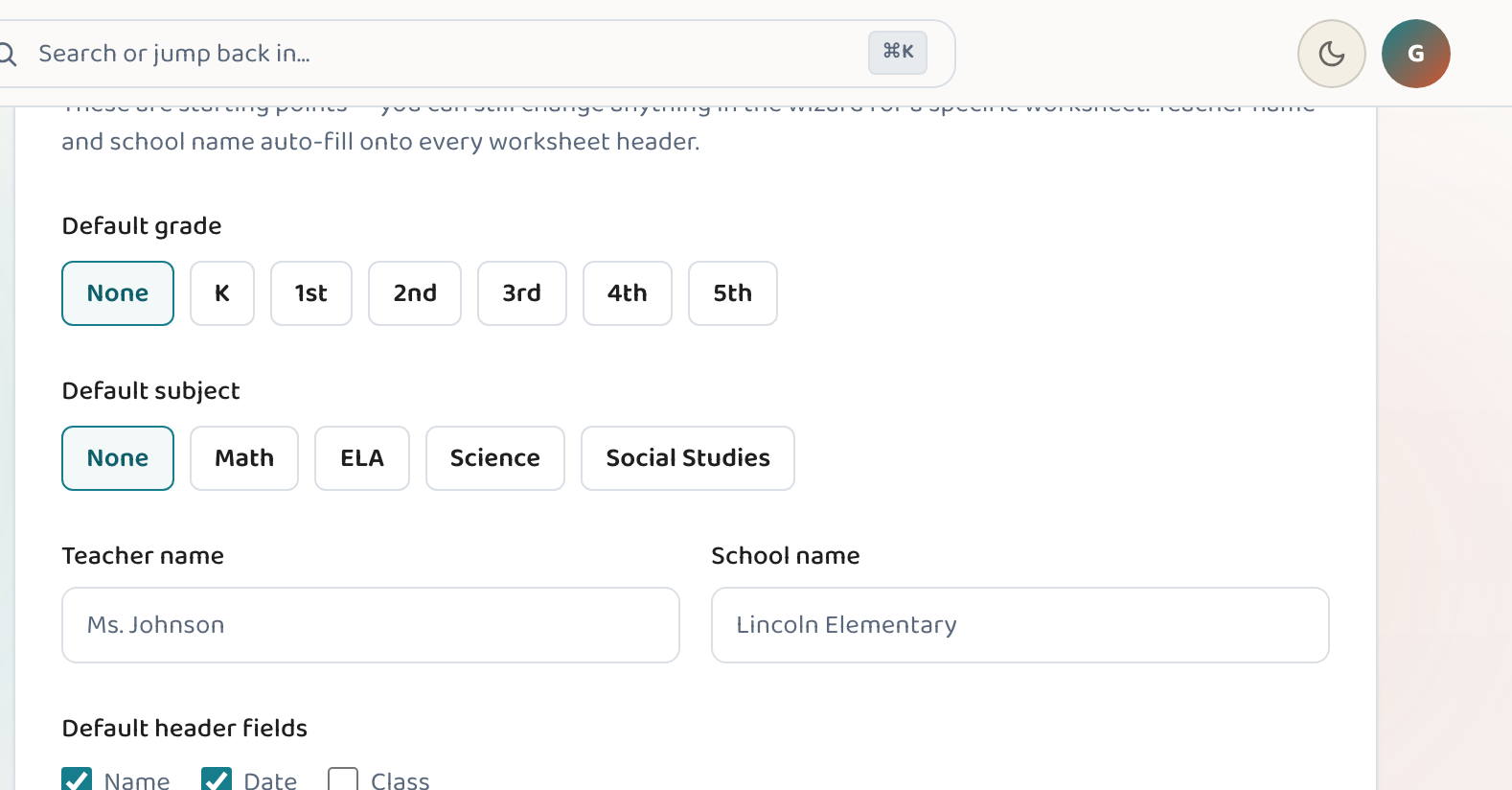
Set your teacher name and school name
Type your name (e.g. "Ms. Johnson") and your school's name (e.g. "Lincoln Elementary"). These auto-fill onto the header of every worksheet you generate.
Choose a default grade and subject
Pick the grade and subject you teach most often. The wizard will open on those each time — you can still change them for any specific worksheet.
Set default header fields
Check the header fields you want printed at the top of every worksheet — Name, Date, and/or Class. These pre-fill automatically too.
Adjust the default question count and difficulty
Use the slider to set how many questions you usually want (5–25), and choose your preferred starting difficulty (Easy, Medium, or Hard). Both are just defaults — changeable per worksheet.
Click Save defaults
Click "Save defaults" and the page confirms with a "Saved." message. The next time you open the Create page, the wizard will already have your grade, subject, name, and header fields filled in.
Good to know
- You can also set a default language (English or Spanish) if you regularly generate worksheets in both — the toggle is in the same defaults form.
- Defaults are starting points, not locks. Change any setting in the wizard for a one-off worksheet without touching the defaults.
- If you teach multiple grades, set the default to your most common one and change it in the wizard for the others.
Common questions
Where do I find Classroom defaults?
On your Account page — sign in, open Account from the menu, and scroll to the "Classroom defaults" section. It's one of the sections in the account navigation on the left.
Do defaults override what I choose in the wizard?
No. They pre-fill the wizard's fields as a starting point, but you can change any of them for a specific worksheet before generating. The default saves you from re-entering the same information every time.
Will my teacher name and school appear on every worksheet?
Yes — once saved, they auto-fill onto the header of every worksheet you generate. You can edit them per worksheet in the wizard too.
Who can set classroom defaults?
Anyone with an account — classroom defaults are available on every plan, including Free. Set them once and the wizard pre-fills them on every visit.
Try it yourself, free.
Make a standards-aligned worksheet in under a minute. No credit card to start.
Start free