How do I turn a worksheet photo or PDF into a new one?
Upload a photo or PDF of a worksheet when you start a new one, and Lessonpress reads it and uses it as inspiration for a fresh, original page. You can drag the file in, pick it from your computer, or paste an image straight from your clipboard. You still choose the grade and standard, so the new worksheet lands where you need it — it's inspired by what you uploaded, not a copy of it.
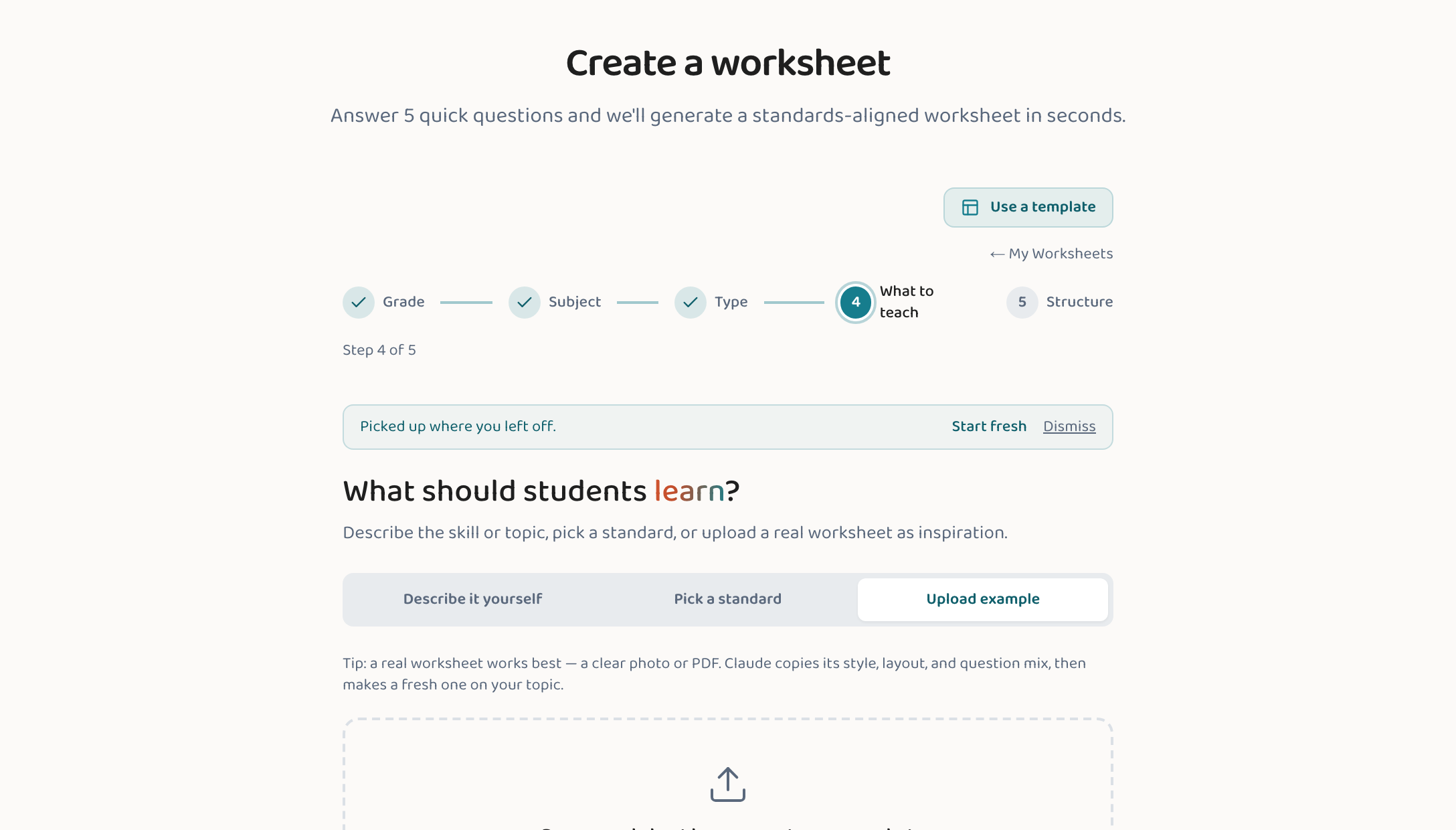
Step by step
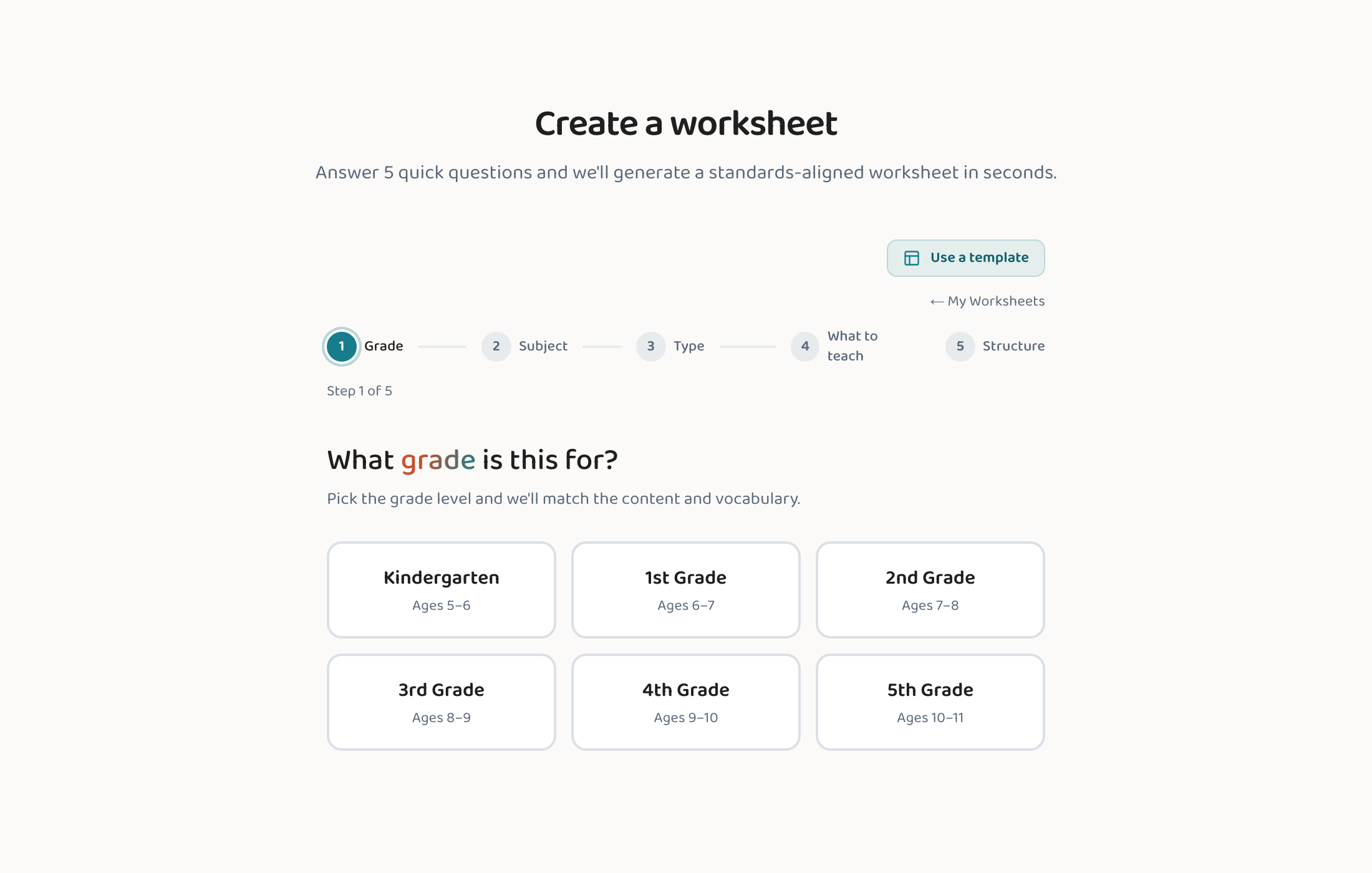
Start a new worksheet
Begin the create flow as usual. Look for the option to upload a file for inspiration.
Add your photo or PDF
Drag the file in, choose it from your computer, or paste an image you've copied. Lessonpress reads the page and understands the kind of work it shows.

Set your grade and standard
Pick the grade and the standard or topic you want the new worksheet to hit, so it lands at the right level for the child or class doing it.
Generate and print
Lessonpress builds a fresh, original worksheet inspired by what you uploaded. Print it or save it as a PDF.
Good to know
- A clear, well-lit photo reads best. Avoid heavy shadows or extreme angles.
- The result is a new worksheet, not a copy — so you're free to use it with your class or your own child.
- Great for recreating a beloved worksheet you only have on paper, or refreshing one that's gotten stale.
Common questions
What file types can I upload?
Photos (image files) and PDFs both work. You can drag and drop, choose a file, or paste an image from your clipboard.
Is the new worksheet a copy of the one I uploaded?
No. Lessonpress uses your upload as inspiration and writes a fresh, original worksheet aligned to the grade and standard you choose.
Why do I still pick a grade and standard?
So the new worksheet lands at the right level for whoever's doing it and stays standards-aligned — the upload guides the style and topic, your settings set the level.
Try it yourself, free.
Make a standards-aligned worksheet in under a minute. No credit card to start.
Start free