How do I change the standard on a worksheet I already made?
Open the worksheet, find "Change standard" in its tools, pick a different standard from the same grade and subject, and generate. Lessonpress builds a new worksheet aligned to the new standard — same format and structure as the original, different learning target. Your original worksheet stays untouched, and the new one is saved as a linked variant (a linked copy). This is faster than starting over from scratch when you want the same type of worksheet on a different skill. Changing the standard is part of the Teacher and Pro plans.
Step by step
Open a worksheet you want to retarget
Open the worksheet whose format you like but whose standard you want to change. It can be any worksheet in your library.
Choose "Change standard"
Find "Change standard" in the tools alongside the worksheet — on the preview page rail, or from the card/row menu in the library.
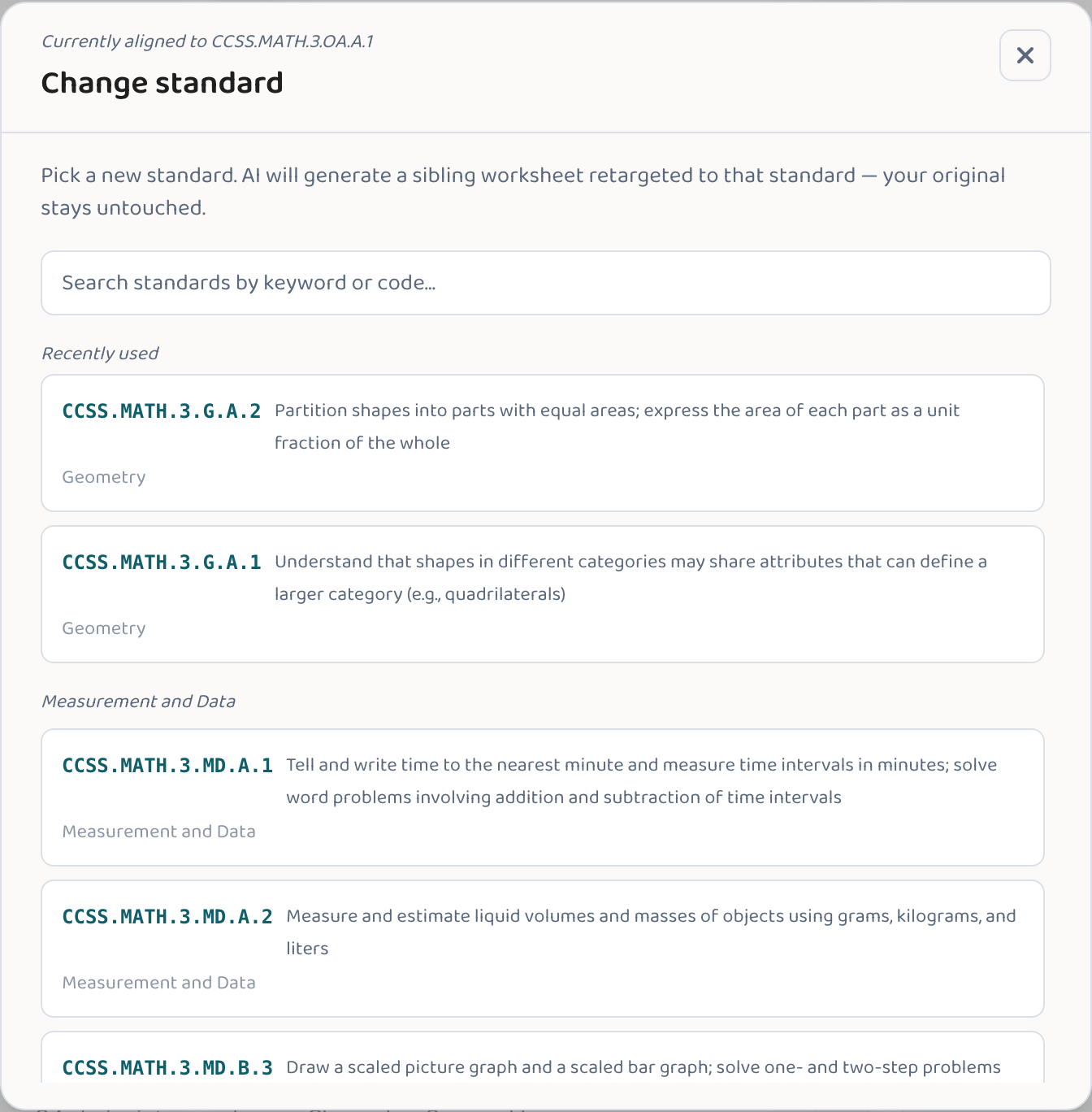
Pick the new standard
A picker opens, scoped to the same grade and subject as the original. Browse or search for the standard you want to target instead. You can't swap to a different grade or subject — those are fixed from the original.
Generate the new worksheet
Lessonpress builds a fresh worksheet aligned to the new standard, keeping the same format and question structure as the original. It takes the same time as a regular generation.
Review — your original is still there
The new worksheet opens and is saved to your library as a linked variant of the original. Your original worksheet is unchanged — both exist in your library, grouped together.
Good to know
- The new worksheet keeps the original's question structure (count, difficulty, header fields) — only the standard and learning target change.
- If the original was in Spanish, the new worksheet is generated in Spanish too.
- The new worksheet is a linked variant — in list view, it appears under the original in the family expansion; in cards view, it shows up in the family modal.
- Use this when you want a consistent question format across several standards — build it once, then swap rather than rebuild.
Common questions
Does changing the standard modify my original worksheet?
No. Your original stays exactly as it was. Lessonpress creates a new, separate worksheet aligned to the new standard and links it to the original as a variant.
Can I swap to a different grade or subject?
No — the grade and subject come from the original worksheet and are fixed. To target a different grade or subject, generate a new worksheet from scratch.
When should I use "Change standard" instead of just regenerating?
Use it when you like the format and structure of a worksheet you already made and just want a different learning target. It's faster than starting the wizard over, and the new worksheet stays grouped with the original in your library.
Does the new worksheet include an answer key?
Yes — on the Teacher and Pro plans, the new worksheet comes with its own answer key, just like any generated worksheet.
Try it yourself, free.
Make a standards-aligned worksheet in under a minute. No credit card to start.
Start free